How I Make Transparent PNG Quote Designs for Cricut Using a Free Local AI Tool
If you design quote graphics for a living or even just as a side hustle (Etsy prints, Cricut decals, sublimation mugs, whatever your setup looks like), you already know the most annoying part isn’t writing the quote. It’s prepping the icon or illustration that goes with it. Most quote designs need more than text. A…
Never miss an update — choose Quotelicious as your preferred source on Google.
How it works: Tap the button below to open Google’s settings page, then check the box next to Quotelicious.
Tap the checkbox to turn it blue — that’s how you know it’s set.
If you design quote graphics for a living or even just as a side hustle (Etsy prints, Cricut decals, sublimation mugs, whatever your setup looks like), you already know the most annoying part isn’t writing the quote. It’s prepping the icon or illustration that goes with it.
Most quote designs need more than text. A small floral sprig next to “Bloom where you’re planted,” a moon icon for a night-sky quote, a hand-drawn arrow under “Choose joy.” And nine times out of ten, that illustration comes with a background that has to go before it’s usable in Cricut Design Space or on a sublimation transfer.
For a long time my process was: upload the image to some online background remover, wait, burn through free credits, then either pay up or hunt for a different free tool once the credits ran out. Fine for one file. Painful when you’re prepping a whole collection.
So when I heard about a desktop app that removes backgrounds and upscales images right on your own computer, no upload queue and no credit meter, I wanted to test it before recommending it to anyone. That’s background remover for Cricut territory, and it’s called Creative Fabrica Studio Desktop.
What Is Creative Fabrica Studio Desktop?
Here’s the plain version: Creative Fabrica Studio Desktop is a Windows and Mac app that brings Creative Fabrica Studio together with a set of AI tools (background remover, image upscaler, and a few other creative utilities) that install and run locally on your machine.
I want to be precise here instead of just repeating marketing copy. What I can confirm from testing it myself: once you install the relevant local model inside the app, the supported tools (background removal and upscaling, specifically) process your image on your own computer instead of sending it to a server first. I didn’t test every feature in the app, so I’m only speaking to the local tools I actually used.



Why Local AI Matters for Quote Designers
“Runs locally” sounded like a technical footnote to me at first. Then I thought about how I actually work, and it solves real problems:
- You’re not uploading your designs to a stranger’s server. Quote graphics are often the actual product you’re selling. I’d rather not send every file to a third party before it’s even finished.
- No credit-counting. A single quote collection can easily need 15 to 20 icons processed. A per-image credit system turns that into a math problem before it turns into a finished product.
- Slow internet doesn’t slow you down. Sublimation files especially tend to be large. Uploading a big file to a cloud tool takes real time.
- It sits inside the same app you’re already designing in. No exporting to one tool, re-importing to another, and losing track of which version is final.
None of that makes the app magic. It just means less waiting, less paying, and less worrying about where your files end up.
Hands-On: Turning a Quote Illustration Into a Cricut-Ready, Sublimation-Ready PNG
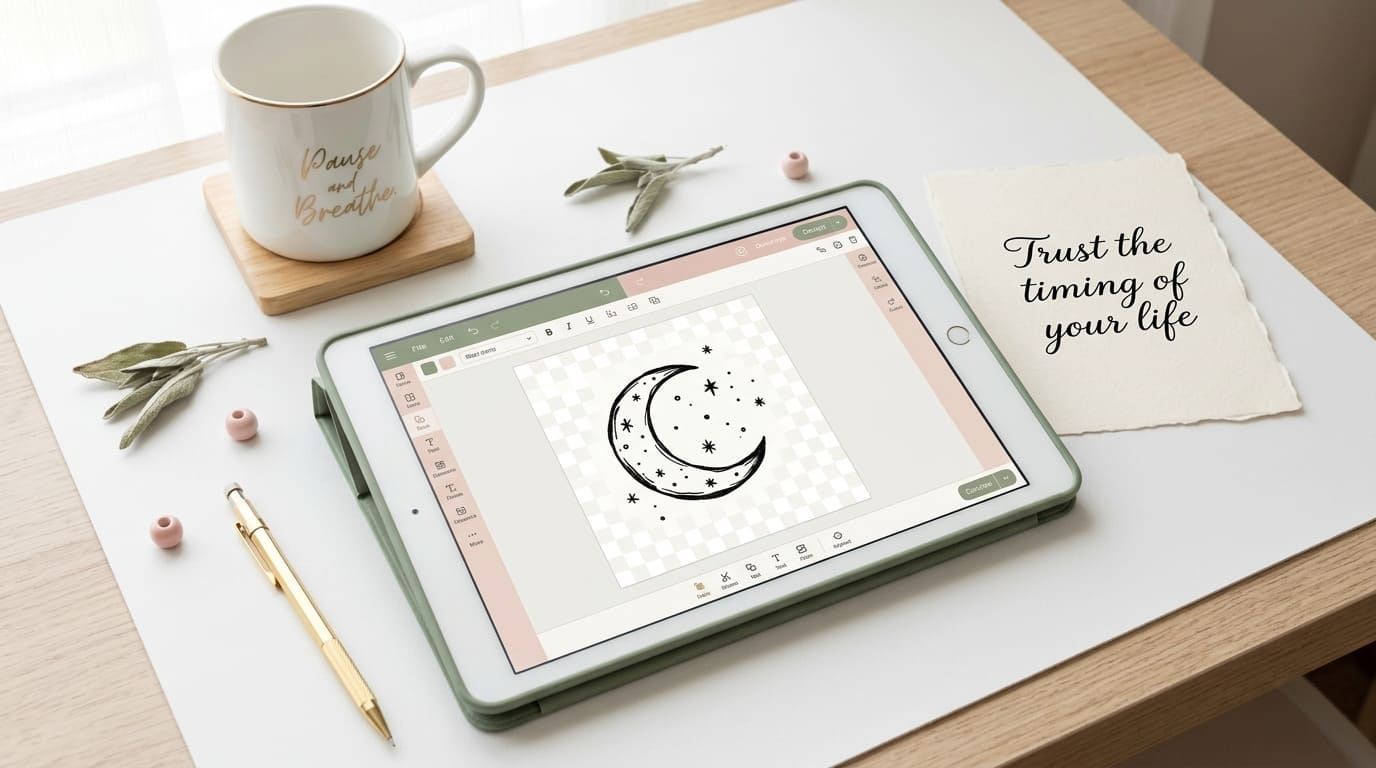
I picked a real example: a small hand-drawn moon illustration I use alongside a “Trust the timing of your life” quote design, something I’d normally pair with text in Cricut Design Space or print on a mug.
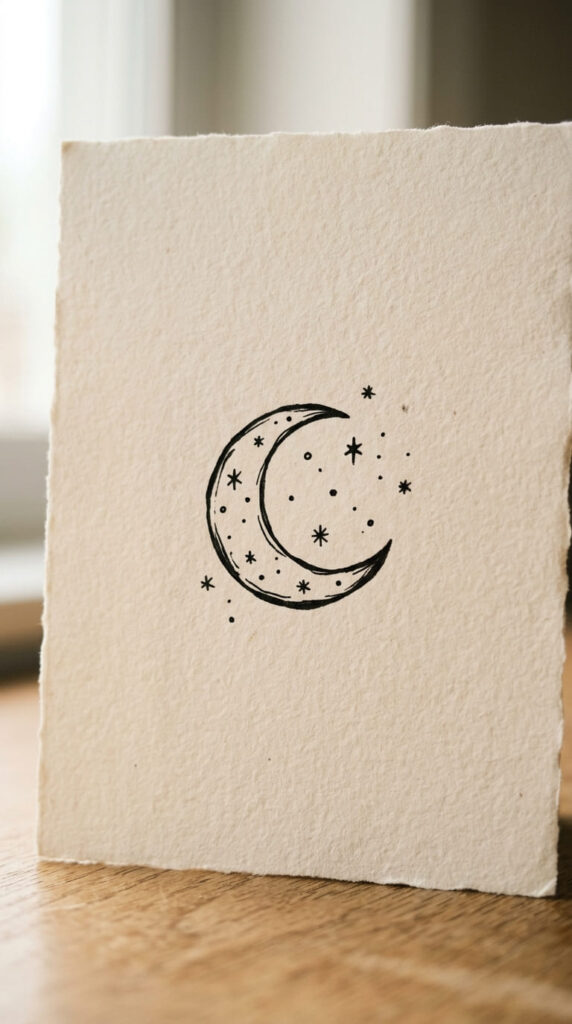
Step 1: the original. The moon illustration was photographed against a plain but not perfectly clean background, a slightly textured paper with a faint shadow along one edge.
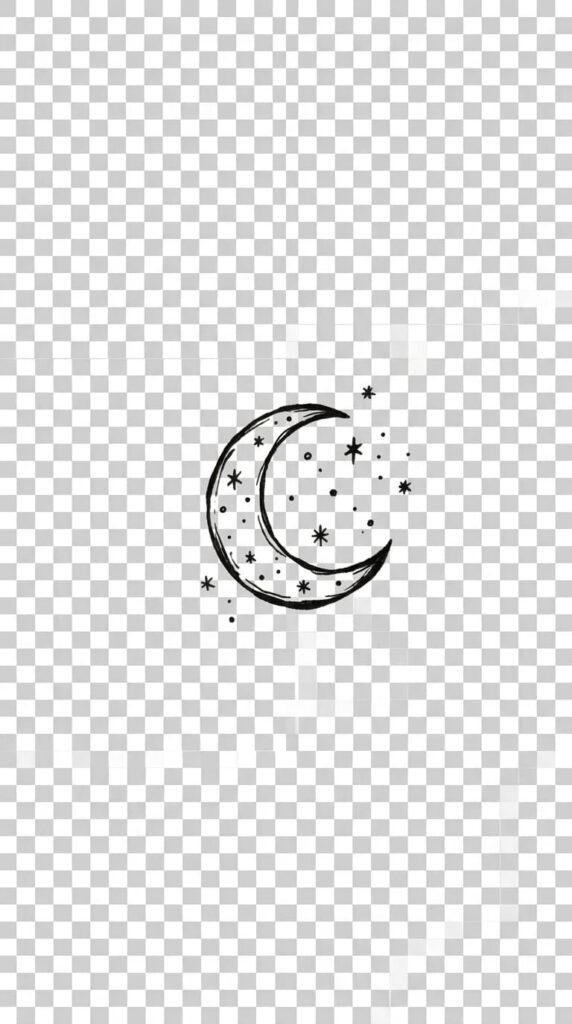
Step 2: background removal. I opened Creative Fabrica Studio Desktop and ran the local background remover on the image. It handled the thin pen lines around the moon’s crescent edge well, which is usually where cheaper tools leave rough or jagged cutouts.
Step 3: upscaling. The original file was fine for a small digital download but not sharp enough for a large sublimation transfer. I ran it through the local AI upscaler before using it anywhere print-related.
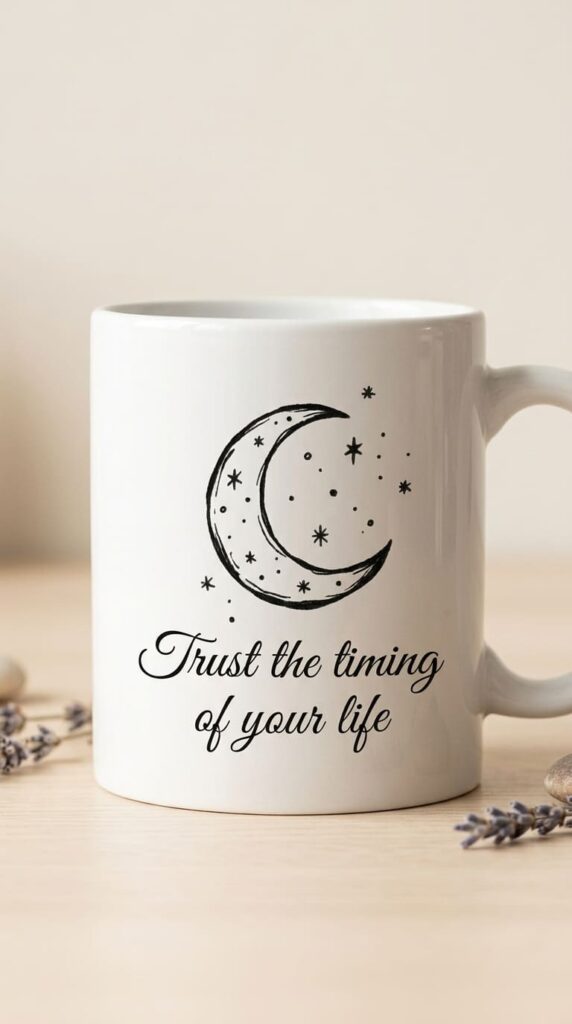
Step 4: final assembly. With a clean, transparent PNG in hand, I dropped it straight into Cricut Design Space next to the quote text, and separately onto a mug mockup to check how it would look printed.
The part that actually convinced me: I never left my desktop, and I didn’t watch a single upload progress bar the entire time.
Who Is This Actually Good For?
This isn’t for everyone, but if any of these describe your workflow, it’s worth trying:
- Quote designers selling on Etsy or through POD platforms
- Cricut crafters making decals, vinyl designs, or wall art with quotes and icons
- Sublimation creators printing quotes on mugs, shirts, or pillows
- Digital product sellers building printables or planners with quote graphics
- Anyone designing quote content who wants a free tool without a Photoshop learning curve
Pros and Honest Limitations
I’d rather give you the full picture than a highlight reel.
What worked well:
- Free to use for the local tools I tested
- Available for both Windows and Mac
- Handled thin lines and small details in illustrations better than I expected
- Built into the Creative Fabrica Studio workflow, so there’s no exporting back and forth between apps
What to know going in:
- Performance depends on your computer. I didn’t test this on an older or lower-spec machine, so I can’t promise the same speed on one
- You’ll need to download the model for a tool the first time you use it, which takes a few minutes
- Some parts of the broader Studio experience still need an internet connection or a Creative Fabrica account, depending on what you’re doing. The local processing applies specifically to the supported local tools, not necessarily every feature in the app
Better you know that before you plan a whole product line around it than after.
A Second Reason to Try It: Upscaling Before You Print
If your bigger headache isn’t backgrounds but blurry files before a sublimation print run, the same app’s upscale sublimation designs tool is worth trying on its own. It’s the exact tool I used to get the moon illustration above ready for a mug transfer, and it’s the one I’d start with if print quality is your specific problem.
FAQ
Is Creative Fabrica Studio Desktop free?
Yes, the local tools I tested (background remover and upscaler) are free to use once installed.
Does the background remover run locally?
Yes, after the model is installed, it processes images on your own computer rather than sending them to a server first.

Can I make transparent PNG files for Cricut?
Yes, background removal outputs a transparent PNG you can bring straight into Cricut Design Space.
Does it work on Windows and Mac?
Yes, it’s built for both platforms.
Can I use it for sublimation designs?
Yes, I used the upscaler specifically to prep a quote illustration for a mug sublimation transfer.
Can I use it for print-on-demand quote designs?
Yes, both the background remover and upscaler are useful for cleaning up and sharpening quote graphics before listing them.
Is it an alternative to cloud-based background removers?
For the supported local tools, yes. The difference is processing happens on your device instead of through an upload queue and credit system.
Do I need an internet connection to use it?
You’ll need one to download the app and the model the first time. After that, the local tools I tested didn’t require re-uploading images to work.
Are my images uploaded anywhere?
For the local background remover and upscaler, no. That’s the whole reason I wanted to test this app in the first place.
If you’ve got a folder of half-finished quote illustrations sitting somewhere, this is worth the ten minutes it takes to install and test on one file. Start with your trickiest illustration, the one with the thinnest lines or the messiest background. That’s the real test of whether a cutout tool is actually good.
Never miss an update — choose Quotelicious as your preferred source on Google.
How it works: Tap the button below to open Google's settings page, then check the box next to Quotelicious.
Tap the checkbox to turn it blue — that's how you know it's set.